Category Archives: Audio & Multimedia

Audio Encoders/Decoders, Audio File Players, Audio File Recorders, CD Burners, CD Players, Multimedia Creation Tools, Music Composers, Other, Presentation Tools, Rippers & Converters, Speech, Video Tools

Nero SoundTrax 2017.15.0.6000

Type: Freeware
Cost: $0
Size: 2.99 MB
Release date: Nov 25 2016
Platform: Win2000,WinXP,Win7 x32,Win7 x64,Windows 8,Windows 10,WinServer,WinOther,WinVista,WinVista x64
Publisher’s Site:  http://www.nero.com
Publisher’s Product Page:  http://www.nero.com/redir.php?id=12268
Country: Germany


Nero SoundTrax

With Nero SoundTrax, the user can mix his own special audio CD compilation and change it at will. Instead of simply playing a list of tracks one after the other, this program makes it possible to fade the tracks into each other and adapt the speeds to create an optimum mix. Now you can be your own DJ. Everyone can create unique disks with a large range of additional effects.
Nero SoundTrax also has several assistants to make recording from tapes and records child’s play. In a few easy steps, the complete old collection can be digitalized and available forever in top quality.


Thanks to the many templates, even demanding projects are no longer a problem: 5.1. Surround, 7.1 Surround – simply select the template and Nero SoundTrax opens along with the relevant tracks.
In addition, the integrated Nero ScratchBox provides user-friendly functions for mixing and scratching.

Graphcat<

Golden Records Vinyl to CD Converter 2.08

Type: Shareware
Cost: $50
Size: 770.00 kB
Release date: Aug 24 2016
Platform: Win2000,WinXP,Win7 x32,Win7 x64,Windows 8,Windows 10,WinServer,WinOther,WinVista,WinVista x64
Publisher’s Site:  https://www.nchsoftware.com/imageconverter/index.html
Publisher’s Product Page:  https://www.nch.com.au/golden/index.html
Country: United States of America


Golden Records Vinyl  to CD Converter

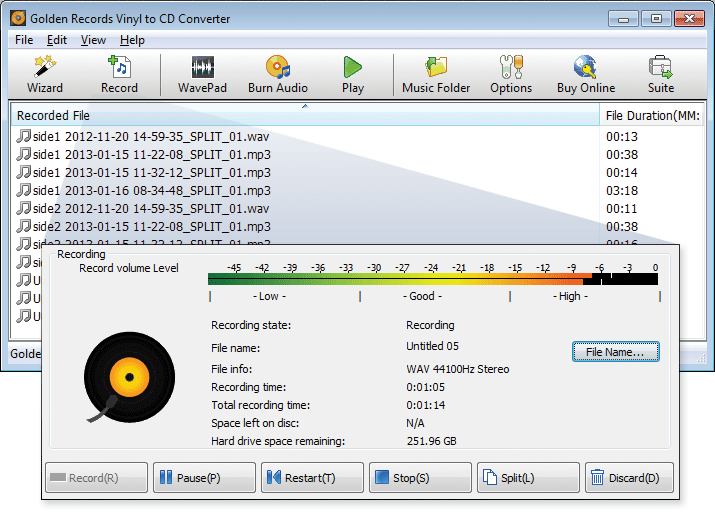
Golden Records for Windows is a powerful and easy to use audio file converter. Easily convert your favorite casette tapes and vinyl records into high-quality digital files. Golden Records Analog to Digital Audio Converter helps save and protect your favorite vinyls or casettes. Golden Records features an easy to use wizard to help you through the process. Audio restoration is a key feature in Golden Records that helps to remove hiss and click.

Golden Records Analog to CD Converter features:
– Convert audio from vinyl LP records and audio cassette tapes into CD or Wave/MP3 format.
– Comes with a full set of audio restoration tools to clean up damaged audio.
– Simple wizard utility to walk you through the conversion process.
– Includes full feature CD-Burner.
– Encodes into mp3 or wave files with the ability to add mp3 ID tags to converted files.
– Automatically normalizes recordings.
– Automatically applies dc offset correction recordings.
– Click / pop elimination when recording from vinyl records.
– Automatic hiss and noise reduction.
– Automatic ‘phono’ RIAA eq correction (if your old record player does not have a preamplifier).
– Can convert 78 RPM records playing on a 45 RPM player.

VLC Player MSI Installer 3.0.1

Type: Freeware
Cost: $0
Size: 48.83 MB
Release date: Sep 29 2018
Platform: Win2000,WinXP,Win7 x32,Win7 x64,Windows 8,Windows 10,WinServer,WinOther,WinVista,WinVista x64
Publisher’s Site:  https://blog.techygeekshome.info
Publisher’s Product Page:  https://blog.techygeekshome.info/2018/03/vlc-player-v3-0-1-msi-installers-released
Country: United Kingdom


VLC Player MSI Installer

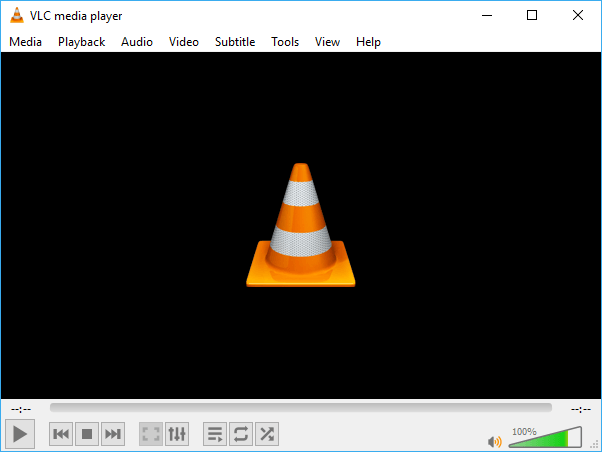
VLC Player MSI Installer.

For mass distribution of software, there are a few options. Group Policy and Configuration Manager are perfect examples of systems that can utilise MSI installers to push out to a number of devices on a corporate network. Below we will show a brief simple guide on how to use MSI installers for silent mass installation.

Fully Silent Method

If you want to run the MSI installers as completely silent, then you can use the following command:

msiexec.exe /i MSIinstaller.msi /q /norestart

Automated with GUI

If you want to run the MSI installers as automated but displayed to the end user, then you can use the following command:

msiexec.exe /i MSIinstaller.msi /passive /norestart

MSI Parameters

where:

msiexec.exe this starts the MSI installer engine
/i this tells the msiexec.exe to run an install
MSIinstaller.msi filename of the MSI installer
/q tells the msiexec.exe to run as silent
/passive tells the msiexec.exe to run as automated but display to end user
/norestart tells the msiexec.exe to not allow an automatic restart after installation completion
Obviously some MSI installers may have different parameters but the above are the most common.